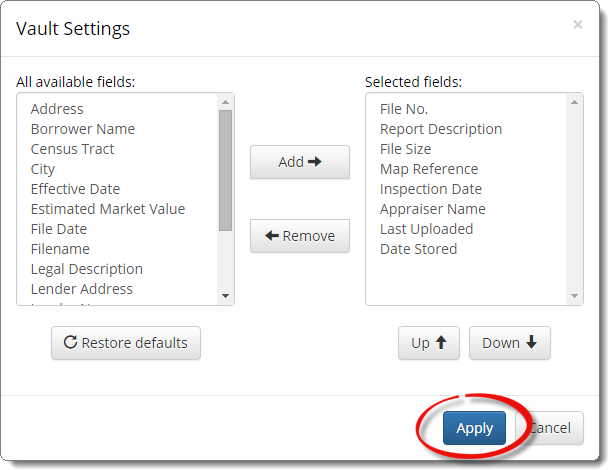
Vault has sorting functions as well
as configurable columns that allow you to display as few or as many details
about the files you have stored as you prefer.
To customize the columns displayed in Vault:
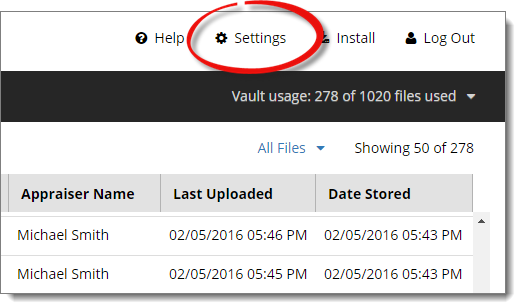
- Click Settings on the upper right.
- In the screen that appears, make the changes you wish to see in Vault:
- Add additional columns by selecting a field from the All
available fields list on the left and clicking
Add.
- Remove a column by selecting it from the Selected
fields list on the right and clicking Remove. This
simply removes the column from view in Vault and has no affect on the data in
your reports in your Vault account.
- Arrange the columns in the order you'd like them to appear from left to
right by clicking the Up and Down buttons
below the Selected fields list. Moving a column up the list
places the column to the left of the item below it while moving a column
down the list places it to the right of the item above it.
- Click Apply when you're finished to apply your changes.